 Add SourceLayer to Chrome
1. Write down what you remember
Note the episode, the guest, roughly when in the episode it came up, and any distinctive word: a name, a number, an unusual phrase. Distinctive words are far easier to search for than general ones.
Guide
You remember what the guest said, roughly, but not when. Here is how to find the moment in a long episode and confirm the exact words before you quote it.
By SourceLayer team · Updated 2 November 2026
Note the episode, the guest, roughly when in the episode it came up, and any distinctive word: a name, a number, an unusual phrase. Distinctive words are far easier to search for than general ones.
If the episode is on YouTube, open the description, select Show transcript, and use your browser’s find on the open panel to look for your word. Click the matching line to jump to that moment.
How to open a YouTube transcriptSome podcast apps show transcripts for many episodes, and some let you search them. Availability varies by app, show and language, so if one app doesn’t have a transcript, try the episode on YouTube or the show’s own website.
If you remember the meaning but not the words, keyword search often misses. Narrow it down by topic instead: use the episode’s chapters, or a SourceLayer Map of the YouTube episode, to find the section where the subject comes up, then read the ideas and their transcript passages.
Play from a little before the line and listen through to the end of the point. Automatic transcripts mishear names and numbers, and speakers often qualify what they said a few sentences later. Quote the words you heard, not the transcript’s version.
Keep the show, episode title, guest, date and timestamp with the quote, plus a link to the moment. If you publish the quote, credit the speaker and keep it short.
Long conversations come back to topics. Scan the later parts of the episode too, in case the guest changed their mind or added an important exception.
Navigate a long podcast by topicSourceLayer works with supported YouTube videos that have usable captions, in Chrome. Automatic captions can mishear names and technical terms, and a Map can miss context, so check the original video before relying on an idea. In the inspected extension implementation, video sync and timestamp seeking are limited to the first 90 minutes of a video. Free includes 3 hours of video per month. Standard is $13.99 per month or $125.91 per year in the US, and £10.99 per month or £98.91 per year in the UK, with 30 hours per month and the Saved Library.
See pricingOften, yes, if a transcript is available. YouTube shows transcripts for videos with captions, and some podcast apps show transcripts for many episodes. Availability varies by show and app.
Not on its own. Automatic transcripts can mishear words, especially names and numbers. Use the transcript to find the moment, then quote what you hear in the audio.
Product views from our published Chrome Web Store listing. Saving Maps and ideas is available on Standard.
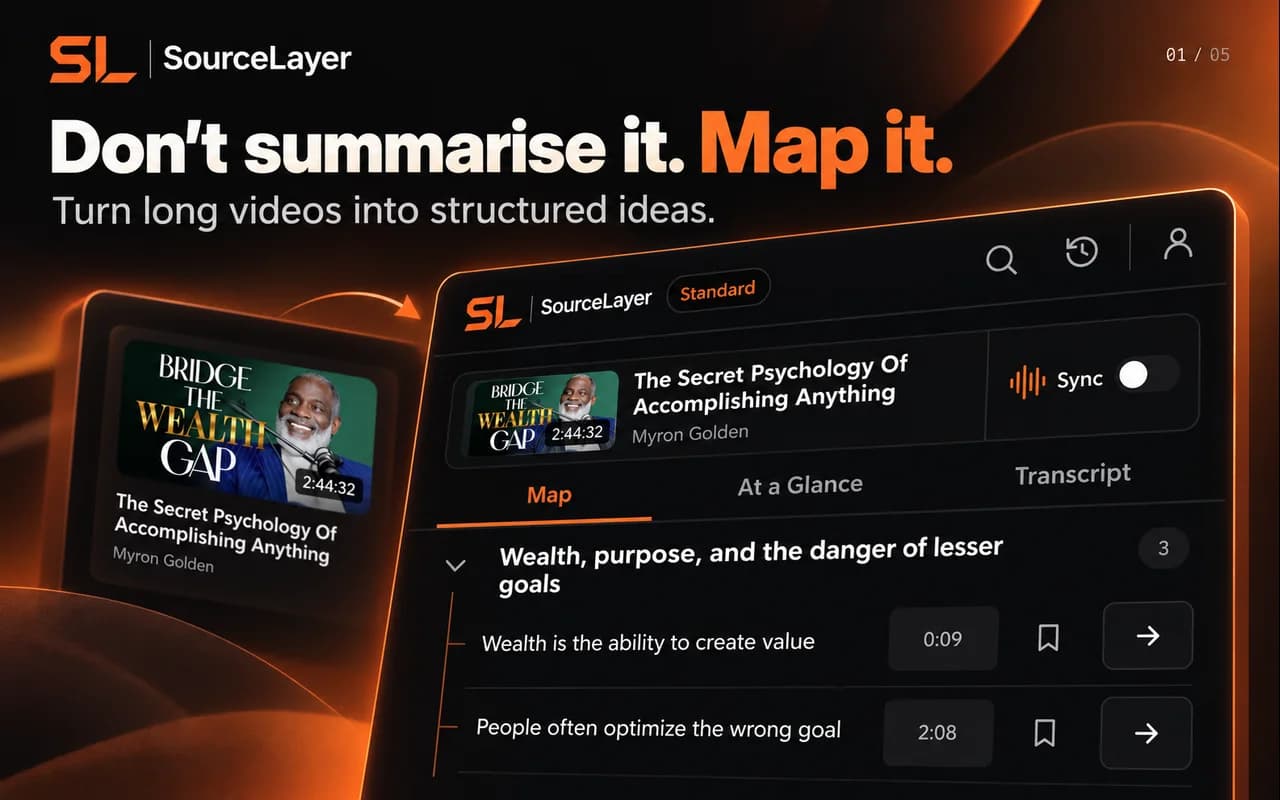
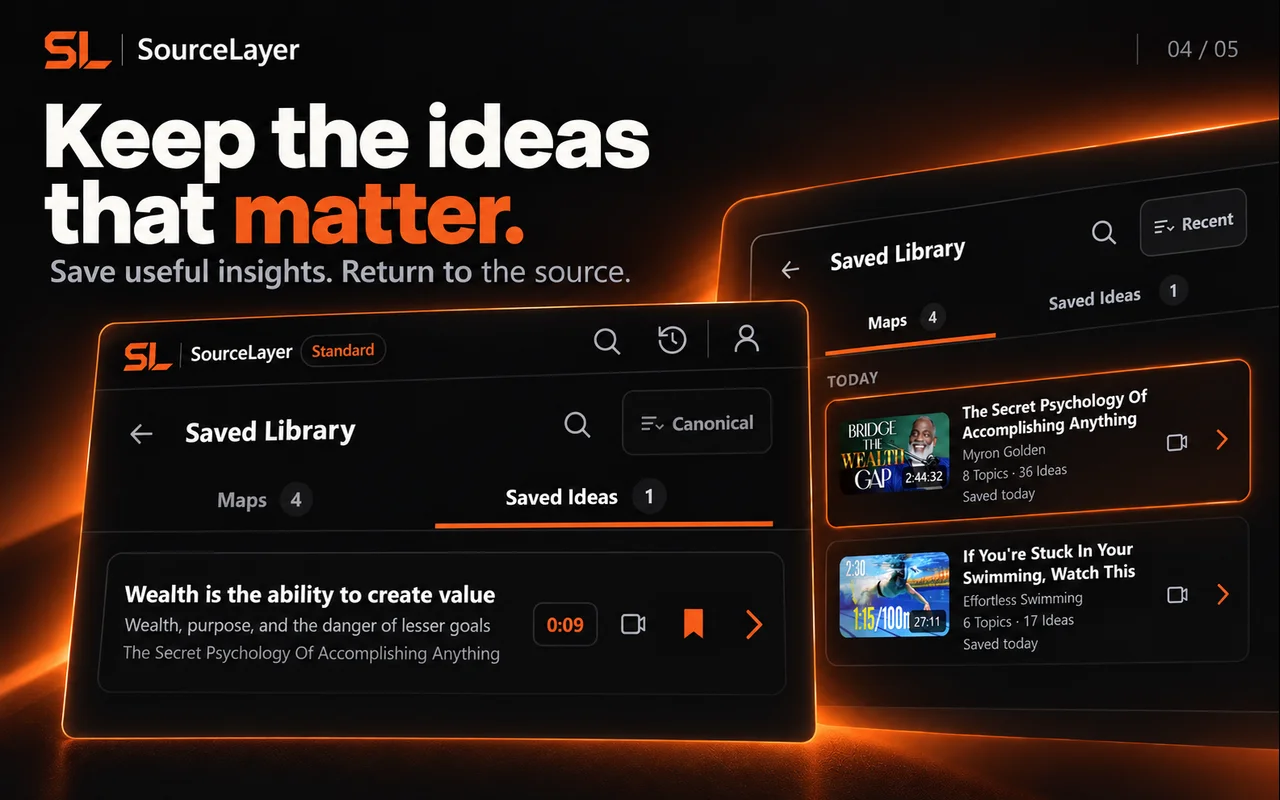
View the current Chrome Web Store listing. Listing artwork shows example content; it does not imply creator endorsement.
Quantum Mechanics: Animation explaining quantum physics — Physics Videos by Eugene Khutoryansky (25:46).
Frozen marketing Map based on the captured public English caption track. Source: Physics Videos by Eugene Khutoryansky, Creative Commons Attribution (YouTube). Selected excerpts and editorial paraphrases; no affiliation or endorsement.
This example uses the current research demonstration. It illustrates Map navigation; it is not a transcript of the video.
Source-linked by design.
Idea → Supporting transcript → Exact timestamp → Original source