Taking notes from a video is harder than from a book: you can’t see the whole lecture at once, and finding a point again means scrubbing. This method keeps your notes short and makes every point easy to check later.
Before you start, look at the creator’s chapters if there are any, skim the description, or open a SourceLayer Map to see the sections. Write the main sections as headings in your notes. You now have a frame to fill in rather than a blank page.
02
2. Write questions, not transcripts
Under each heading, write the question that section answers. While you watch, answer it in your own words. Copying sentences word for word takes longer and you remember less of it. Pause when you need to; don’t try to keep up with the speaker.
03
3. Add a timestamp to every key point
Next to each point, note the time it was said, such as 34:10. Later, that number takes you straight back to the explanation. In a SourceLayer Map, each idea already carries its timestamp and supporting passage.
04
4. Use the transcript for wording, not for notes
Open YouTube’s transcript when you need an exact definition or formula wording. Copy only the sentence you need and mark it as a quotation. Check it against the audio, because automatic captions can mishear technical terms.
YouTube lets you change playback speed in the player settings. Speed up the parts you already know and slow down for new material. If you find yourself rewinding often, you are going too fast.
06
6. Review within a day
Go back through your notes the next day. Cover your answers and try to answer each question from memory, then check the timestamp for anything you got wrong. Short, repeated reviews keep your notes useful until the exam.
07
Where SourceLayer helps
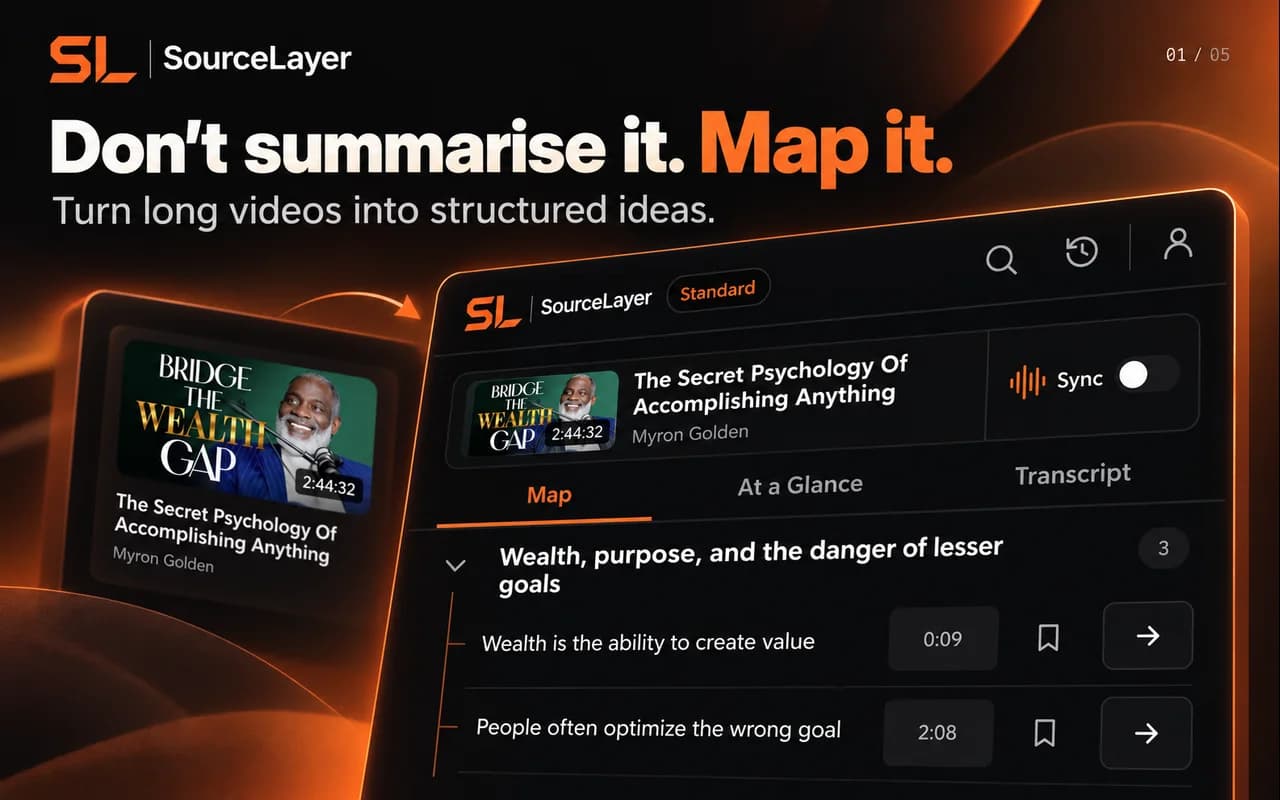
SourceLayer gives you the structure from step 1 and the timestamps from step 3 automatically: a Map of sections and ideas, each linked to its transcript passage and moment. Your own notes and questions are still yours to write; the Map makes them faster to check.
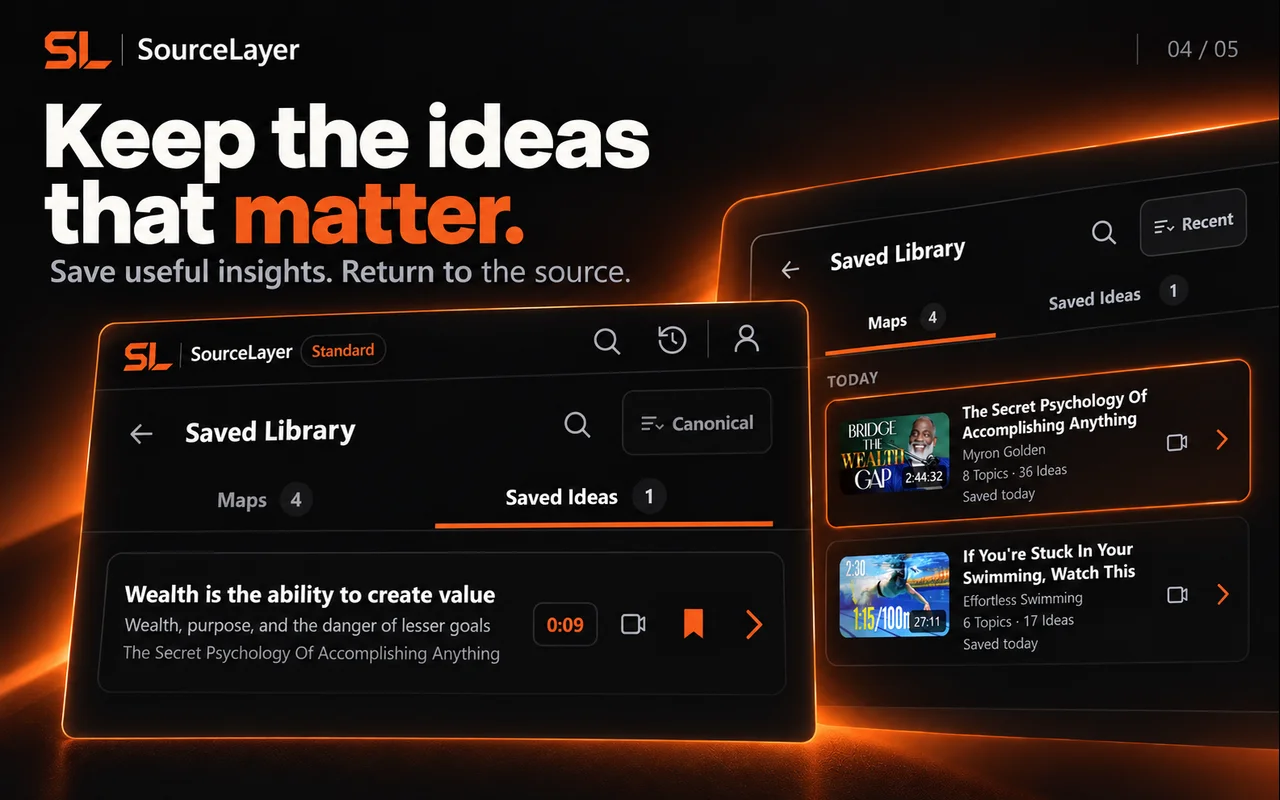
SourceLayer works with supported YouTube videos that have usable captions, in Chrome. Automatic captions can mishear names and technical terms, and a Map can miss context, so check the original video before relying on an idea. In the inspected extension implementation, video sync and timestamp seeking are limited to the first 90 minutes of a video. Free includes 3 hours of video per month. Standard is $13.99 per month or $125.91 per year in the US, and £10.99 per month or £98.91 per year in the UK, with 30 hours per month and the Saved Library.
Use whichever lets you write in your own words rather than copying. The timestamps matter more than the medium: they let you check a point in the original lecture.
Can I copy a YouTube lecture’s transcript as my notes?
You can copy text from YouTube’s transcript panel, but a full transcript is not notes. Use it for exact wording, and keep only what you need. Respect the creator’s rights if you share it.
See the Map and Saved Library
Product views from our published Chrome Web Store listing. Saving Maps and ideas is available on Standard.
Map: explore sections and ideas, then return to a timestamp.Saved Library on Standard: keep Maps and useful ideas for later.
How a Computer Works - from silicon to apps — Improbable Matter (42:32).
Frozen marketing Map based on the captured published English (United States) caption track. Source: Improbable Matter, Creative Commons Attribution (YouTube). Selected excerpts and editorial paraphrases; no affiliation or endorsement.
This example uses the current tutorial demonstration. It illustrates Map navigation; it is not a transcript of the video.
Electronic switches become manufactured transistor networks
 Add SourceLayer to Chrome